
Introduction
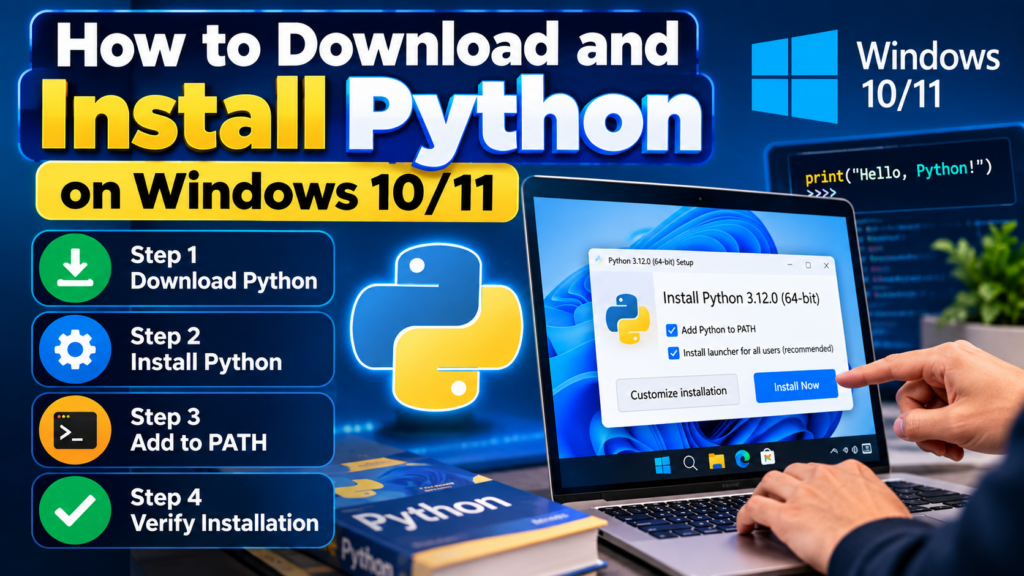
In this guide, you will learn how to install Python on Windows 10/11 step by step. This guide is designed for beginners, students, developers, and anyone who wants to start programming with Python. You will learn how to download and install Python on Windows, add Python to PATH, verify the installation, and use pip to install Python packages.
Python is one of the most popular programming languages for beginners, students, developers, data scientists, and machine learning enthusiasts. Before developing Python applications, you need to download and install Python correctly on your Windows computer.
In this guide, you will learn how to install Python on Windows 10/11 step by step. We will cover downloading Python, installing Python, adding Python to PATH, opening the Python interpreter, checking the Python version, and installing packages using pip.
This tutorial is suitable for beginners who are installing Python for the first time.
Note: Python is a programming language and development tool. The installation process described here is intended for educational and development purposes.
Step-by-step guide to install Python on Windows 10 and 11
What Is Python?
Python is a high-level, general-purpose programming language widely used for software development, automation, data analysis, artificial intelligence, machine learning, web development, and scripting.
Some popular applications of Python include:
- Machine Learning
- Artificial Intelligence
- Data Science
- Web Development
- Automation
- Computer Vision
- Natural Language Processing
- Data Analysis
- Software Development
- Cybersecurity
Before using Python projects or Python libraries, you first need to install Python on your computer.
Python Installation Requirements
Before installing Python on Windows, make sure your computer meets the basic requirements.
Basic requirements
- Windows 10 or Windows 11
- Internet connection
- Administrator access if required
- Sufficient storage space
- A web browser
You do not need a high-end computer for basic Python programming.
How to Download Python for Windows 10/11
The safest way to download Python is from the official Python website.
Visit the official Python website and open the Windows download section.
Look for the latest stable Python release available for Windows.
Choose the appropriate installer for your system, normally the 64-bit Windows installer on modern Windows computers.
Step 1: Download Python
Open your web browser and go to the official Python download page.
Download the Windows installer.
After the download is complete, locate the installer in your Downloads folder.
The installer will normally have a name similar to:
python-3.x.x-amd64.exe
The exact Python version may change over time.
Follow the steps below to learn how to install Python on Windows correctly and verify the installation.
Step 2: Start the Python Installation
Double-click the downloaded Python installer.
The Python Setup window will appear.
Before clicking the installation button, look for the option:
Add Python.exe to PATH
Make sure this option is selected.
This is an important step because adding Python to PATH allows you to run Python commands directly from Command Prompt or PowerShell.
Then click:
Install Now
Wait while Windows installs Python.
Step 3: Complete Python Installation
The installer will automatically copy the required Python files to your computer.
After the installation finishes, you should see a successful installation message.
Click Close to exit the installer.
Python is now installed on your Windows computer.
Step 4: Check Whether Python Is Installed
Now we need to verify that Python was installed correctly.
Press:
Windows + R
Type:
cmd
and press Enter.
Command Prompt will open.
Type:
python --versionThen press Enter.
You should see a Python version such as:
Python 3.x.xThe exact version will depend on the Python release you installed.
You can also try:
pythonIf Python is installed correctly, the Python interpreter should open.
Step 5: Check the Python Installation Path
You can also check where Python is installed.
Open Command Prompt and run:
where pythonWindows will display the location of the Python executable.
This is useful when troubleshooting Python installation or PATH-related problems.
Step 6: Check pip Installation
pip is Python’s package installer. It allows you to install additional Python libraries and packages.
Check whether pip is available by running:
pip --versionYou should see information about the installed pip version and its location.
You can also use:
python -m pip --versionThe second command is often useful when multiple Python installations exist on the computer.
Step 7: Install a Python Package
Once Python and pip are installed, you can install Python libraries.
For example:
pip install numpyYou can install pandas using:
pip install pandasFor machine learning projects, you may install libraries such as:
pip install scikit-learnAlways check the documentation of a library for its current installation requirements.
Step 8: Create Your First Python Program
Now let’s create a simple Python program.
Open Notepad or a code editor such as Visual Studio Code.
Write:
print("Hello, World!")Save the file as:
hello.pyOpen Command Prompt and navigate to the folder containing the file.
Then run:
python hello.pyYou should see:
Hello, World!Congratulations! Your Python installation is working correctly.
Python Installation Using Command Prompt
You can verify your Python installation from Command Prompt using the following commands.
Check Python version
python --versionCheck pip version
pip --versionFind Python location
where pythonStart Python
pythonExit Python
exit()These commands are useful for troubleshooting your Python environment.
Common Python Installation Problems
1. ‘python’ is not recognized
If Command Prompt displays an error such as:
'python' is not recognized as an internal or external commandPython may not have been added to your PATH.
Solution
Reinstall Python and make sure:
Add Python.exe to PATH
is selected during installation.
You can also check your Windows environment variables manually.
2. Python Opens the Microsoft Store
Sometimes typing:
pythonmay open the Microsoft Store instead of Python.
This can happen because Windows App Execution Aliases are enabled.
You can check Windows settings and disable the Python-related aliases if necessary, then verify your Python installation again.
3. pip Is Not Recognized
If you receive:
'pip' is not recognizedtry:
python -m pip --versionIf that works, you can install packages using:
python -m pip install package-nameFor example:
python -m pip install numpy4. Multiple Python Versions Are Installed
If you have multiple Python versions installed, Windows may use a different version than expected.
Check the installation paths with:
where pythonYou can also check the Python launcher:
py --versionThis can help identify which Python installation Windows is using.
Python vs pip: What’s the Difference?
Many beginners confuse Python and pip.
Python is the programming language and interpreter.
pip is a package manager used to install additional Python libraries.
For example:
pythonruns Python.
While:
pip install numpyinstalls the NumPy package.
What Can You Build After Installing Python?
After installing Python, you can start developing many different types of projects.
Beginner Python Projects
- Calculator
- Number guessing game
- To-do application
- Weather application
- File management automation
- Student management system
Advanced Python Projects
- Face Recognition System
- Attendance Management System
- Fake News Detection
- Object Detection
- Chatbot
- Machine Learning Projects
- Computer Vision Projects
- Data Analytics Projects
- AI Applications
If you’re a final-year student, Python can also be used for many B.Tech and engineering final-year projects.
Python for Machine Learning
Python is particularly popular in machine learning because of its large ecosystem of libraries.
Popular libraries include:
- NumPy
- Pandas
- Matplotlib
- Scikit-learn
- TensorFlow
- PyTorch
- OpenCV
For example:
pip install numpy pandas matplotlib scikit-learnOnce these libraries are installed, you can begin developing data science and machine learning applications.
Frequently Asked Questions
How do I install Python on Windows 10?
Download the Python Windows installer from the official Python website, run the installer, select Add Python.exe to PATH, and click Install Now.
How do I install Python on Windows 11?
The process is almost the same as Windows 10. Download the Windows installer, enable Add Python.exe to PATH, install Python, and verify it using python --version.
How do I check whether Python is installed?
Open Command Prompt and run:
python --versionIf Python is installed correctly, Windows will display the installed Python version.
What is pip in Python?
pip is Python’s package installer. It is used to download and install additional Python packages such as NumPy, Pandas, and Scikit-learn.
Why is Python not recognized in Command Prompt?
The most common reason is that Python was not added to the Windows PATH environment variable. Reinstalling Python with Add Python.exe to PATH enabled can resolve the issue.
Can I install Python without coding knowledge?
Yes. You can install Python without prior programming knowledge. After installation, you can learn Python gradually through beginner tutorials and simple projects.
Which Python version should beginners install?
Beginners should generally use a current stable Python release that is supported by the libraries and tools they plan to use.
Can Python be used for machine learning?
Yes. Python is widely used for machine learning, artificial intelligence, data analysis, and computer vision.
🐍 How to Install Python on Windows for Programming Projects
After completing the installation, you can use Python to develop different types of software applications. Understanding how to install Python on Windows correctly helps you prepare your computer for practical programming tasks.
Open Command Prompt or Windows Terminal and execute python --version to verify the installed version. You can also check whether pip is available by running python -m pip --version.
Once these commands work, your system is ready for installing Python packages and working with development tools such as VS Code and PyCharm.
💡 Best Tools to Use After Installing Python
Learning how to install Python on Windows is only the beginning. Choosing the right development tools can make programming easier and more productive.
- Visual Studio Code: A lightweight editor for writing and managing Python programs.
- PyCharm: An IDE designed for Python application development.
- Jupyter Notebook: Useful for data science, machine learning, and experimentation.
- Anaconda: A Python distribution commonly used for scientific computing and data analysis.
- IDLE: A basic development environment included with many Python installations.
Choose tools according to your project requirements and experience level.
💻 Benefits of Installing Python on Windows 10/11
Python provides a beginner-friendly environment with a large collection of libraries and development tools. After learning how to install Python on Windows, you can explore several technical domains.
- Artificial Intelligence: Develop machine learning and deep learning applications.
- Data Science: Work with NumPy, Pandas, Matplotlib, and other libraries.
- Web Development: Build web applications using Django and Flask.
- Automation: Create scripts to automate repetitive computer tasks.
- Computer Vision: Develop image processing and object detection projects using OpenCV.
- Academic Projects: Build practical Python projects for college assignments and final-year submissions.
⚙️ Common Problems During Python Installation
While following a guide on how to install Python on Windows, beginners may encounter a few installation or configuration problems.
1. Python is not recognized as a command
This issue may occur when Python is not added to the Windows PATH environment variable. Enable the option to add Python to PATH during installation or configure the environment variable manually.
2. Pip command is not working
Pip is Python’s package installer. If the command is unavailable, check your Python installation and try running python -m pip --version.
3. Multiple Python versions are installed
Having multiple versions can sometimes cause confusion. Check the active version using python --version and configure the required interpreter in your development environment.
4. Installation permission errors
If installation fails because of permissions, check the selected installation directory and Windows account permissions.
🚀 What Can You Build After Learning How to Install Python on Windows?
Once Python is installed and working correctly, you can start developing practical applications. Students can use their Python environment to create projects in different domains, including:
- Student Management System using Python
- Quiz Game using Python Tkinter
- Face Recognition Attendance System
- Plant Leaf Disease Detection using Machine Learning
- Pothole Detection using YOLO
- Fake News Detection using Natural Language Processing
- Data Analysis and Visualization Applications
These projects can help you understand programming concepts and gain practical development experience.
🚀 Start Your Python Development Journey with Techie Projects
Now that you know how to install Python on Windows, take the next step by developing a practical application. Working on real-world projects can help you understand Python programming, libraries, application design, and problem-solving.
Techie Projects offers project options for students interested in Python, Artificial Intelligence, Machine Learning, Deep Learning, Computer Vision, and Data Science.
Whether you are preparing a mini project or a final-year engineering project, contact our team to discuss available project packages, source code, documentation, and technical support.
Get started with your Python project today!
🎓 Get Python Project Source Code and Support from Techie Projects
Ready to move beyond installation tutorials and start building real applications? Techie Projects provides Python-based academic and practical project solutions for students and technology enthusiasts.
You can explore project options across Python, Machine Learning, Artificial Intelligence, Deep Learning, Data Science, Computer Vision, and Web Development.
Contact Techie Projects to enquire about project availability, source code, documentation, demonstrations, and implementation support.
Conclusion
How to install Python on Windows 10/11 is straightforward when you follow the correct steps.
Installing Python on Windows 10/11 is straightforward when you follow the correct steps. Download the installer, enable Add Python.exe to PATH, complete the installation, and verify Python using the Command Prompt.
Once Python is installed, you can use pip to install libraries such as NumPy, Pandas, Scikit-learn, TensorFlow, and OpenCV and start building Python, AI, machine learning, and data science projects.
If you are looking for Python projects for students, explore the related project resources on Techie Projects.
☎️ Contact Us For More Queries:-
📲 Call/WhatsApp: +91-9460060699
🌎 Website: www.techieprojects.com
📺 Instagram: @pythonprojects_